Grease Pencil Material Properties
Grease Pencil materials define how strokes and fills are rendered. Each stroke references a single material, and that material contains separate settings for its Stroke and Fill components.
The Material Properties panel provides tools to manage material slots, control visibility and locking, and configure the appearance of stroke and fill shading.
Material Slots
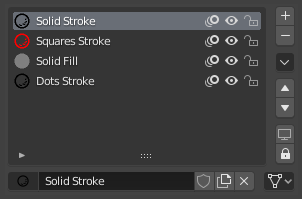
Grease Pencil material slots panel.
Material slots assign materials to the Grease Pencil object. Each stroke stores a reference to one of these material slots.
The active material is used for newly created strokes. Existing strokes keep their assigned material unless changed manually.
Next to each material name are controls for common visibility and editing options:
- / (Show/Hide in Ghosts)
Controls whether the material is visible in Onion Skinning previews.
- / (Hide/Show Material)
Toggles the visibility of strokes using this material in the viewport.
- / (Lock/Unlock Material)
Prevents strokes using this material from being edited in Edit Mode.
Specials
These operators provide bulk control over material visibility and locking:
- Show All
Enable visibility for all materials.
- Hide Others
Hide all materials except the active one.
- Lock All
Lock all materials to prevent editing.
- Unlock All
Unlock all materials for editing.
- Lock Unselected
Lock materials not used by the currently selected strokes.
- Lock Unused
Lock and hide materials not assigned to any stroke.
- Copy Material to Selected
Copy the active material to selected Grease Pencil objects.
- Copy All Materials to Selected
Copy all material slots to selected Grease Pencil objects.
- Remove Unused Slots
Remove material slots that are not assigned to any strokes.
Lock & Visibility Controls
- (Isolate Material)
Lock all other materials so only the active material can be edited.
- (Isolate Material)
Hide all other materials so only the active material is visible.
Surface
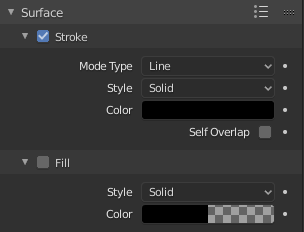
Shader panel with only Stroke component enabled.
The Surface panel defines the visual appearance of strokes and fills. Each material contains two independent components:
Stroke – Controls the outline rendering.
Fill – Controls the interior rendering of closed strokes.
Each component can be enabled or disabled independently.
Stroke
The Stroke component defines how the line itself is drawn.
- Line Type
Defines how the stroke geometry is rendered.
- Line:
Renders a continuous line connecting stroke points.
- Dots:
Draws a circular shape at each stroke point. Points are not connected.
- Squares:
Draws a square shape at each stroke point. Points are not connected.
- Style
Determines how the stroke is shaded.
- Solid:
Uses a uniform base color.
- Texture:
Uses an image texture mapped along the stroke.
- Image
Image data-block used as the texture source.
- Blend
Mix factor between the texture and the Base Color.
- UV Factor
Controls texture scaling along the stroke length.
- Base Color
The primary color of the stroke.
- Holdout
Makes the stroke act as a mask, removing color from underlying strokes and fills.
- Alignment
Controls orientation of Dots and Squares.
- Path:
Aligns to the drawing direction and object rotation.
- Object:
Aligns only to the object’s rotation.
- Fixed:
Aligns to screen space.
- Rotation
Rotates the Dots or Squares shapes. Limited to -90° to 90°.
- Self Overlap
Controls how overlapping parts of the same stroke blend, particularly with semi-transparent materials.




Fill
The Fill component controls rendering of closed stroke regions.
- Style
Defines how the fill is shaded.
- Solid:
Uses a single base color.
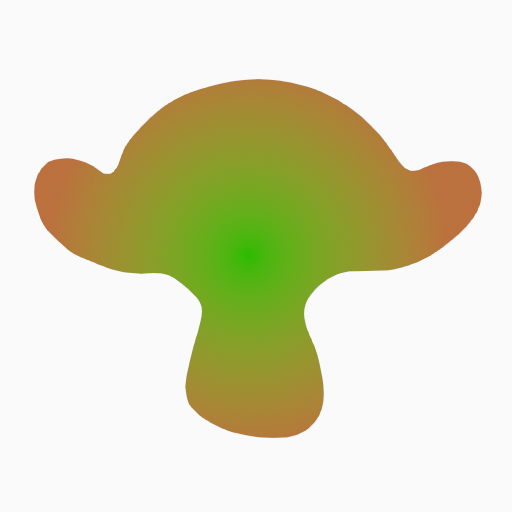
- Gradient:
Blends between two colors.
- Gradient Type
- Linear:
Blends along one axis.
- Radial:
Blends outward from a center point.
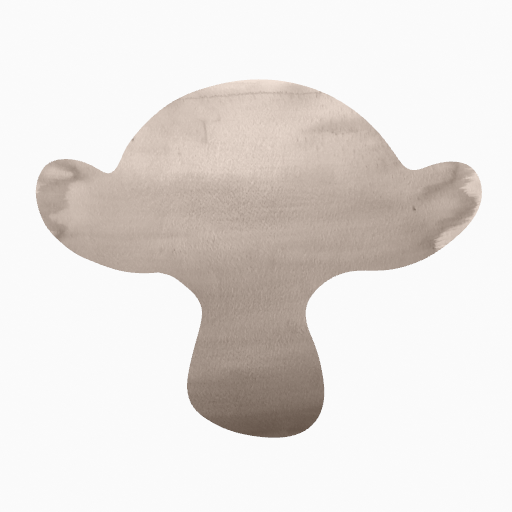
- Texture:
Uses an image texture.
- Image
Image data-block used for the fill texture.


- Base Color
Primary fill color.
- Secondary Color Gradient
Secondary color used for gradients.
- Holdout
Makes the fill act as a mask, removing color from strokes underneath.
- Blend Gradient / Texture
Controls mixing between Base Color and the gradient or texture.
- Flip Colors Gradient
Swaps Base and Secondary colors.
- Location X, Y Gradient / Texture
Offsets gradient or texture coordinates.
- Rotation Gradient / Texture
Rotates the gradient or texture mapping.
- Scale X, Y Gradient / Texture
Scales the gradient or texture mapping.
- Clip Image Texture
Prevents texture tiling when enabled.
Settings
- Pass Index
Custom integer identifier for use in modifiers and compositing. Can be used to target specific materials in Grease Pencil Modifiers.